A new hire asks a pretty reasonable question during onboarding: does this job track my screen? Most managers freeze a little, because most companies bought screenshot monitoring software to solve a visibility problem and never got around to writing down how to explain it.
That silence not the monitoring itself is usually what breaks trust. This guide covers what screenshot monitoring software actually captures, how visible capture differs from stealth capture, which privacy safeguards actually matter, and where the legal and ethical lines sit, so the next time someone asks, there’s a real answer instead of a shrug.
| Quick answer: Screenshot monitoring software periodically captures images of an employee’s screen during work hours to verify activity. Capture can be visible (employees see it happening) or stealth (running silently in the background), and the frequency is almost always configurable. |
Visible vs. Silent (Stealth) Screenshot Capture
Screenshot monitoring comes in two modes, and the difference matters more than most vendors let on.
Visible capture sometimes called “tagger” or foreground mode runs with the employee’s awareness. There’s typically a tray icon, a status indicator, or an option for the employee to pause tracking on a break. This is the default most companies should reach for: it does the job of verifying work while keeping the relationship honest.
Silent or stealth capture runs in the background without a real-time indicator. That doesn’t mean employees are told nothing at all, though responsible implementations still disclose in a written policy or onboarding paperwork that screenshot monitoring is in use, even when the day-to-day operation is invisible.
Stealth mode has a narrower, legitimate set of use cases: investigating a specific security incident, verifying billable hours for contractors or outsourced teams, or meeting an audit requirement in a regulated industry. It’s a poor default for an entire in-house team the moment employees discover silent monitoring they were never told about, the trust cost is far higher than anything the software protected.
- Visible capture — employee sees an indicator; best for everyday, in-house teams that value transparency.
- Stealth capture — runs unseen in real time; best reserved for named exceptions (security investigations, contractor verification, regulated audits) and still disclosed in policy.
No Credit Card Required
You Don’t Need to Watch Every Screen
The right screenshots can help managers understand bottlenecks, verify work, and investigate unusual activity without a constant video feed. .
How Screenshot Capture Actually Works
Under the hood, it’s simpler than it sounds. A lightweight agent installed on the employee’s device takes a still image of the active screen sometimes the full desktop, sometimes just the active window at a set interval. Most platforms, DeskTrack included, let administrators configure that interval (common settings are every 5, 10, or 15 minutes) and adjust it by team, role, or risk level. Each image is timestamped and tied to the application that was active at capture, so a screenshot never sits in isolation it lines up with the same window in the time and activity logs.
It’s worth being precise about what this isn’t. Screenshot monitoring is not continuous screen recording. A screenshot is a single still frame taken periodically; a screen recording is continuous video of every second of activity. The difference isn’t just semantic it changes the storage footprint, the privacy exposure, and how much a manager can realistically review.
| Aspect | Screenshot Monitoring | Continuous Screen Recording |
|---|---|---|
| What’s captured | Still images at set intervals | Continuous video of all screen activity |
| Typical frequency | Every 5–30 minutes (configurable) | Constant, frame-by-frame |
| Storage footprint | Low a handful of images per hour | High hours of video per employee per day |
| Privacy exposure | Limited to periodic snapshots | Captures everything, including incidental personal moments |
| Manager review time | Minutes to scan a day’s images | Impractical to review in full; usually relies on flagged clips |
| Common use case | Everyday productivity and workflow verification | Rare high-security or specific compliance/investigation needs |
For nearly every business use case confirming work happened, spotting workflow bottlenecks, verifying billable hours screenshots do the job with a fraction of the storage and a fraction of the privacy intrusion. Continuous recording is the exception, not the standard, and it’s worth being cautious of any vendor whose default setting is a video feed instead of a snapshot.
Privacy & Employee Trust
Screenshot monitoring earns trust or loses it based on four things: whether people know it exists, who can see the images, how the data is stored, and how long it’s kept.
- A survey by Dtex Systems and Harris Poll found that 77% of employed Americans would be considerably less concerned about digital monitoring on personal or work-issued devices if their employer was upfront about it in advance. Disclosure isn’t a legal courtesy it’s the single biggest lever for whether monitoring feels like oversight or surveillance.
- Access controls. Screenshots shouldn’t be visible to anyone with a login. Restrict access to the employee’s direct manager and HR, log every view, and avoid giving broad teams blanket “browse everyone’s screenshots” permissions they don’t need.
- Secure data handling. Images should be encrypted in transit and at rest, stored with clear data-residency terms, and covered by a retention policy that deletes old screenshots automatically instead of keeping them indefinitely.
- Responsible policy boundaries. Exclude personal devices, pause capture during declared breaks, and be explicit that monitoring applies to company systems during work hours not a personal tab someone forgot to close.
Younger employees in particular are pushing back on monitoring that ignores these boundaries. As SHRM has reported, workers increasingly want to be evaluated on outcomes rather than minute-by-minute activity, and monitoring that feels “sneaky” erodes trust fastest with exactly this group.
Legal & Ethical Questions, Answered
The honest answer to most legal questions here is: it depends where you operate. Here’s the general shape of it not legal advice, and worth confirming with counsel for your specific state or country.
Is screenshot monitoring legal? In the U.S., employers generally have the right to monitor activity on company-owned devices and systems during work hours. That said, a growing number of states impose notice requirements. New York’s electronic monitoring law, for example, requires private employers to give written notice to new hires and post a conspicuous notice for existing staff before monitoring phone, email, or internet activity with civil penalties for noncompliance. Connecticut and Delaware have similar notice statutes. Outside the U.S., rules tighten further: GDPR in the EU generally requires a documented lawful basis and proportionality, not just a line buried in the employee handbook.
Should employees be informed? As a practice, yes independent of whether your state legally requires it. Even where stealth capture is used for a specific investigation, the existence of monitoring as a general practice belongs in onboarding paperwork and the employee handbook.
Is stealth monitoring ethical? This is genuinely contested, and a blanket answer oversimplifies it. Narrow, disclosed-in-policy stealth monitoring for a specific purpose a security investigation, contractor billing verification sits in different ethical territory than covert, always-on surveillance of an entire workforce with no stated purpose or end point. The line tends to track two things: whether the practice was disclosed somewhere in writing, even if not in real time, and whether the scope is limited to what the stated purpose actually requires.
How DeskTrack Puts This Into Practice
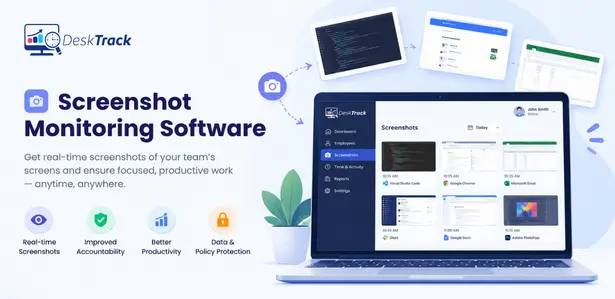
Once the concept and the concerns are clear, the practical question is what a responsible implementation looks like. DeskTrack’s screenshot monitoring is built around the same principles this guide has walked through: configurable capture intervals instead of one fixed default, a choice between visible (“tagger”) and silent mode depending on the use case, and screenshots that are timestamped and tied directly to the app usage time tracking and time logs already running in the background so an image isn’t an isolated snapshot, it’s context for a specific block of work.
Administrators can scale monitoring depth to the situation full detail with screenshots for roles that need it, activity-only or time-only tracking for roles that don’t. That flexibility matters more than any single feature, because the right level of visibility for a finance team handling sensitive client data isn’t the same as what a marketing team needs.
Combined with employee monitoring software and productivity monitoring software reporting, screenshots stop being a surveillance artifact and become one input alongside app usage, idle time, and project hours that gives managers real context without a full-time video feed. The same logic extends to employee time tracking software, desktop activity time tracking, and laptop screen monitoring software for distributed and field teams working outside a traditional office setup.
What We’re Seeing Across Real Rollouts
Based on the trends we have observed during real time rollouts for employee monitoring platforms, companies rarely scrutinize every image. On average, managers review less than 2% of all captured screenshots, relying instead on high-level activity dashboards and only zooming into screenshots to understand specific bottlenecks or idle-time spikes. We also consistently see that teams starting with an aggressive 5-minute capture interval usually adjust it back to 15 minutes after the first 30 days, once a baseline of trust and routine is established.
| Team Type | Typical Capture Frequency | Most Common Reason for Monitoring | Most Common Employee Question |
|---|---|---|---|
| Developers | 15–20 minutes | Spotting workflow bottlenecks (e.g., waiting on code reviews or unclear guidelines) | “Will this capture sensitive source code or personal passwords?” |
| Sales | 15 minutes / Random | Distinguishing time spent in CRM platforms vs. internal administrative tasks | “Is this recording my screen during live client Zoom calls?” |
| Support | 10 minutes | Quality assurance, ticket resolution context, and workload balancing | “Is my idle time between support tickets heavily penalized?” |
| Finance / Ops | 10–15 minutes | Compliance, audit trails, and verifying accurate billable contractor hours | “Who exactly has administrative access to view these images?” |
Real Rollout Example
Here are two real examples based on actual case studies from DeskTrack for the confidentiality we are keeping the name of the customer hidden but referring the industry here :
1. E-Learning & Education Administration
- Problem: Administrative teams were struggling with overlapping tasks, causing slow response times, while instructors faced severe course preparation delays.
- What the data showed: Application and task tracking revealed instructors were spending significantly more time than expected preparing materials due to unclear content guidelines, creating a massive upstream bottleneck.
- Action: Management used these insights to standardize course guidelines and reallocate administrative workloads.
- Result: Administrative response times improved quickly, course preparation became consistent, and managers spent less time requesting manual updates.
- Lesson: Low output is often the result of an operational bottleneck, not an unmotivated employee.
2. Digital Marketing Agency
- Problem: The agency struggled with inaccurate client billing, a heavy reliance on manual end-of-week time entries, and frequent disputes over remote contractor hours.
- What the data showed: Contractors were context-switching between undocumented applications, leading to estimated rather than exact project hours and dropped billable time.
- Action: The agency implemented visible screenshot monitoring at 15-minute intervals, tied strictly to active billable project sessions.
- Result: Time tracking disputes dropped entirely, billable hours accuracy increased, and client trust improved through transparent, timestamped proof of work.
- Lesson: Transparent screenshot policies replace subjective billing disputes with objective, verifiable proof.
A Simple Framework for Rolling Out Screenshot Monitoring
This is the part most guides skip: not what screenshot monitoring is, but how to introduce it without a mutiny.
- Define the purpose narrowly – “Verify work happened and spot bottlenecks” is a purpose. “Make sure people are working” is not it’s too vague to bound the practice or explain to employees.
- Choose visible by default – Reserve stealth mode for named, documented exceptions not as the standard setting for the whole company.
- Write the policy before you turn it on – What’s captured, why, who can see it, and how long it’s kept in writing, before the first screenshot is taken.
- Restrict access and set a retention window – Fewer eyes on the data, and an automatic deletion schedule instead of indefinite storage.
- Revisit after 90 days – Ask the team what’s working and what feels excessive, and adjust frequency or scope based on that feedback not just on what the software allows.
Conclusion
Screenshot monitoring software isn’t inherently invasive or inherently fine it’s a tool that behaves exactly as responsibly or as poorly as the policy wrapped around it. Visible by default, stealth by exception, disclosed in writing, access-limited, and reviewed after a real trial period: that’s the difference between a tool that builds accountability and one that just breeds resentment.
Frequently Asked Questions (FAQs)
Ans. It’s software that periodically captures images of an employee’s screen during work hours either visibly, with the employee’s awareness, or silently in stealth mode to verify activity and provide context alongside time and application logs. Ans. Generally yes, on company-owned devices during work hours, but requirements vary by state. New York, Connecticut, and Delaware require advance notice before electronic monitoring begins, so check your state’s specific rules or consult legal counsel. Ans. Screenshot monitoring captures still images at set intervals, typically every 5–30 minutes. Continuous screen recording captures constant video of everything on screen. Screenshots use far less storage and are far less privacy-invasive. Ans. Yes, especially if personal use of a work device is permitted. Responsible policies exclude personal devices, pause capture during declared breaks, and communicate clearly what’s monitored so employees can manage what they leave on screen. Ans. Most platforms default to somewhere between every 5 and 15 minutes, with the interval configurable by admin, team, or role based on how much visibility the situation actually requires. Ans. Yes, DeskTrack offers both visible (“tagger”) mode, where employees can see monitoring is active, and silent/stealth mode for specific use cases like security investigations or contractor verification.screenshot-monitoring