A support rep’s screen goes idle for eleven minutes. Is she refilling her coffee, waiting for a ticket to route to her, or scrolling her phone under the desk? Idle time tracking software will show you the exact same number for all three. Only one of those is actually a problem.
That’s the trap most managers fall into the first time they open an idle time report. The dashboard shows a low percentage or a string of red bars, and the instinct is to read every idle minute as proof that someone is slacking off. In reality, idle-time data behaves more like a smoke detector than a verdict it tells you where to look, not what you’ll find when you get there.
This guide walks through how idle time tracking software actually works, how to separate genuine time waste from normal breaks and thinking time, and how to turn the numbers into coaching conversations that improve output instead of trust.
“Idle time is a signal, not a verdict.”
Treat it as the start of a question, not the end of one.
What you’ll learn in this guide
- What idle time tracking software actually measures, and what it misses?
- How to tell a genuine time gap from a normal break?
- What idle time is quietly costing you in payroll?
- How to read a computer idle time report without jumping to conclusions?
- Common causes behind high idle time, and what each one signals
- How to set up idle time tracking software without it feeling like surveillance?
- Why help desk time tracking needs a different lens than office-wide monitoring?
- How to turn idle-time data into coaching instead of discipline?
What Idle Time Tracking Software Actually Measures
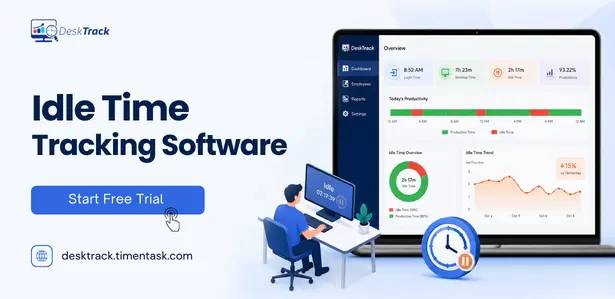
At its core, an idle time tracker watches for the absence of input: no keystrokes, no mouse movement, no clicks, for a stretch of time you define usually somewhere between three and ten minutes. Once that threshold passes, the software logs the period as idle and keeps counting until activity picks back up.
Some tools run at the operating-system level a system idle time tracker software layer that watches the whole machine, regardless of which program is open. Others sit inside a single application a help desk platform, a CRM, a project tool and only track idle time within that tool. The difference matters more than it looks.
A support agent might read as “idle” inside the help desk software because they’re on a phone call in a separate window, or reading documentation in a browser tab. If you only track computer idle time at the machine level, that context disappears you just see a blank ten minutes and nothing else. Decent idle time tracking software gives you enough surrounding detail (which app was last active, whether the screen was locked, whether the gap fell inside or outside scheduled hours) to tell a genuine gap from a false one.
What most idle time tracking software logs:
- Total idle minutes or hours per day or shift
- Idle time as a percentage of logged-in hours
- Idle streaks how long each individual idle period lasted
- Time-of-day patterns (idle spikes before lunch, right after 3 p.m., and so on)
- Idle time broken out by application or project, when paired with app usage tracking
No Credit Card Required
What Does Your Team’s Idle Time Really Mean?
A few inactive minutes can point to a break, a bottleneck, or a broken workflow.
This works well because it immediately communicates problem → solution → benefit..
Idle Time vs. a Normal Break Why Context Changes Everything
Not every quiet stretch is wasted time, and treating an inactivity tracker’s raw output as gospel is how managers end up having awkward, unfair conversations. A person can be fully engaged with work reading a contract on paper, talking through a problem on a call, thinking through a decision while their screen shows zero activity.
The table below shows how identical idle-tracker output can mean very different things:
| Scenario | What the Tracker Shows | What’s Actually Happening | Worth a Closer Look? |
|---|---|---|---|
| 10-minute gap at 10:30 a.m. | Idle | Scheduled coffee or bathroom break | No |
| 25-minute gap mid-shift | Idle | On a phone call, or reading offline | Only if it repeats daily |
| Idle spikes every day around 2 p.m. | Idle | Waiting on approval or a dependent team | Yes, likely a process issue |
| Idle time climbing steadily over 3 weeks | Idle | Unclear tasks, or early disengagement | Yes, worth a conversation |
| Idle during a scheduled meeting | Idle (if off-screen) | In a meeting, away from the desk | No |
The rule of thumb: a single day’s number rarely means anything on its own. Idle time tracking earns its keep when you look at patterns across two or three weeks, not a single snapshot.
The Hidden Payroll Cost Managers Overlook
Idle time is easy to dismiss as a minor annoyance until you run the math across a full team. According to Gallup’s 2026 State of the Global Workplace report, global employee engagement slipped to 20% in 2025, the lowest level the firm has tracked since 2020, and Gallup ties disengagement at that scale to roughly $10 trillion a year in lost productivity worldwide.
Separate industry research on workplace productivity puts the average employee at genuinely productive work for under six hours of an eight-hour shift, leaving close to an hour a day that never converts into output. Multiply an unaccounted 45 minutes a day across a 25-person team, and you’re looking at real money before you’ve even asked why it’s happening.
None of this means the missing time is automatically theft or laziness. Often it’s a scheduling gap, an unclear handoff, or a queue sitting empty. But you can’t fix what you can’t see and this is exactly where idle time tracking software earns its budget line, not by catching people, but by showing you where the gaps actually are.
| Team Size | Avg. Unaccounted Minutes/Day | Hourly Rate | Daily Cost | Annual Cost (250 workdays) |
|---|---|---|---|---|
| 10 | 45 min | $25 | $187.50 | $46,875 |
| 25 | 45 min | $25 | $468.75 | $117,188 |
| 50 | 45 min | $28 | $1,050.00 | $262,500 |
Illustrative figures, not a benchmark. Run the same formula with your own headcount, hourly rate, and average idle minutes to see what it’s actually costing your team.
Quick gut check: rising idle time isn’t automatically a motivation problem. If it shows up during the same week workload increases, the likelier cause is a bottleneck upstream not a person underperforming.
How to Read a Computer Idle Time Report Without Jumping to Conclusions
Before you act on any number in a computer idle time report, run it through a quick checklist:
- Check the time window. One bad day tells you almost nothing. A two- or three-week trend tells you a lot.
- Cross-reference the calendar. Meetings, PTO, training sessions, and travel all show up as idle time. Rule those out first.
- Compare against the role, not the company average. A field sales rep’s idle pattern will never look like a help desk agent’s, and it shouldn’t.
- Look at streak length, not just total minutes. Ten short two-minute gaps read very differently than one unexplained forty-minute block.
- Check for a shared cause. If idle time is up across an entire team, the problem is almost never five people losing motivation on the same day it’s a system, tool, or process.
- Ask before you assume. A two-minute conversation resolves more idle-time mysteries than any dashboard filter.
Common Causes of High Idle Time (and What They Actually Signal)
Most high idle time traces back to one of a handful of root causes. Here’s what to check before assuming it’s a person problem:
| Pattern | Likely Cause | What To Do |
|---|---|---|
| Idle spikes right after a task handoff | Waiting on approval or the next assignment | Fix the handoff process, not the person |
| Idle time clusters near end of day | Workload runs out before the shift does | Rebalance afternoon task volume |
| Idle rises right after a new tool rollout | Tool confusion or a steep learning curve | Add training; check the tool’s usability |
| Idle high for one employee, flat for peers | Unclear expectations, personal issue, or early disengagement | Have a private, curious 1:1 |
| Idle correlates with an empty ticket queue | Queue understaffed elsewhere, overstaffed here | Rebalance staffing across queues |
| Idle high company-wide at specific hours | Meeting-heavy culture, or a system outage | Review calendar norms; check system uptime |
Setting Up Idle Time Tracking Software the Right Way
Getting the setup right decides whether idle time tracking software becomes a useful management tool or a source of resentment. A few things worth getting right from day one:
- Match the threshold to the role – A three-minute idle threshold makes sense for data-entry work. It’s far too aggressive for a developer who spends long stretches thinking before typing a line of code.
- Tell your team what’s tracked and why, before you turn it on – Employees don’t object to visibility nearly as much as they object to secrecy. Being upfront about scope and purpose heads off most of the pushback before it starts.
- Pair idle data with app usage tracking – Knowing what someone was doing beats only knowing when they weren’t doing anything a blank idle report and a report that shows someone was deep in a spreadsheet tell two very different stories.
- Set team benchmarks, not individual quotas – Pull two to four weeks of baseline data per role before deciding what “normal” looks like, and expect that number to differ by function.
- Review weekly, not hourly. Watching idle dashboards in real time turns a productivity tool into micromanagement, and it usually backfires.
- Give employees access to their own data – This one is disproportionately effective. If people can see their own idle patterns, most self-correct before a manager ever has to raise it.
This setup approach works whether you’re rolling out a standalone idle time tracker or idle time tracking as one module inside broader employee monitoring software the sequencing matters more than the specific tool.
Idle Time Tracking for Help Desk and Support Teams
Help desk time tracking deserves its own section because the math is genuinely different. In most departments, idle time is compared against a fixed workload. In a help desk or support queue, workload itself fluctuates by the hour, which changes what “idle” should even mean.
An agent can register as fully idle while waiting for the next ticket to route to them and that’s not a performance issue at all. It’s a staffing and volume signal. The number worth watching isn’t idle time on its own; it’s idle time relative to queue volume. If idle time climbs while the ticket queue is full, that’s genuinely worth a look. If it climbs while the queue is empty, the fix is a staffing or scheduling change, not a conversation with the agent.
There’s also a technical quirk specific to support work: phone-based agents often show as idle while they’re actively on a call, simply because a phone call doesn’t generate keystrokes or mouse movement. If your help desk time tracking setup doesn’t integrate with your phone system or CRM to log call time as active, you’ll flag your busiest agents as your most idle ones which is exactly backwards.
From Data to Coaching: Turning Idle Patterns Into Conversations
The entire point of tracking idle time is to make coaching conversations better, not to replace them with a spreadsheet. That only works if the data opens the conversation instead of ending it.
Compare these two openers:
Not this: “Your idle time was 35% last week what’s going on?”
Try this instead: “I noticed a few longer gaps most afternoons last week, usually between 2 and 3. Is there something about that window that’s creating downtime, or does the ticket queue tend to dry up then?”
The second version treats the employee as someone with useful information about their own day, not a suspect. It also tends to surface the real cause faster, because most people are perfectly willing to explain a workflow gap once they don’t feel like they’re being accused of something.
Build this into the conversation:
- Lead with curiosity, not the number itself
- Share the specific pattern you saw, not a vague “your numbers are low”
- Ask what’s happening before you suggest what should change
- Check whether the same pattern shows up across other employees before treating it as personal
- Write down what you agreed to change, not just the data that started the conversation
Measuring Results After You Act
Once you’ve made a change reworked a handoff, added training, rebalanced a queue give it two to three weeks before judging whether it worked, then check:
- Idle time trend, week over week, not day to day
- Throughput per role tickets closed, tasks completed, deals advanced
- Backlog and overtime movement
- How idle time tracking software numbers line up with output from employee productivity monitoring software, if you’re running both
- A quick pulse check with the team a drop in idle time that comes with a drop in morale isn’t actually a win
Idle time tracking software works best as one input alongside employee time tracking software and broader employee activity tracking, not as a standalone verdict. The number tells you where to look. Everything after that is still a management decision, not an automated one.
Where to Go From Here
Idle time tracking software won’t fix a broken workflow by itself, and it was never meant to replace a manager’s judgment. What it does well is point you toward the right question faster than guesswork ever could.
If you’re evaluating idle time tracking software for your team, start small: track one department for two weeks, read the report with your team’s context in mind, and use it to open a conversation before you draw a conclusion. That’s the difference between a tool that improves your team and one that just makes people nervous.
Frequently Asked Questions (FAQ)
Ans. Idle time tracking software is a tool that logs periods when a computer shows no keyboard or mouse activity for a set stretch of time. Managers use the resulting reports to spot workflow gaps, payroll waste, and staffing mismatches, not to log every individual minute of a person’s day. Ans. Not, when it’s set up correctly. The difference comes down to transparency and purpose: surveillance operates in secret and tracks people; idle time tracking, used well, is disclosed upfront, applied consistently across a role, and aimed at fixing workflow problems rather than watching individuals. Ans. There’s no single universal number it depends heavily on role. A developer or strategist will naturally show more idle time than a data-entry role, simply because thinking doesn’t generate keystrokes. The better approach is to set a baseline per role using two to four weeks of your own data, rather than borrowing a generic industry benchmark. Ans. Yes, and it’s often more useful there than in-office, since remote employee monitoring can’t rely on a manager simply seeing who’s at their desk. The same rules apply, though: pair idle data with context, and set expectations before rollout, not after someone notices the software running. Ans. In a help desk or support environment, idle time needs to be read against queue volume, not on its own. An agent idle because the queue is empty is a staffing signal; an agent idle while tickets are stacking up is a different problem entirely. Ans. It can, but only as supporting context alongside actual output — tickets resolved, projects completed, quality of work never as the headline metric on its own. Idle time answers “where might time be going,” not “how good is this person at their job.”idle-time-tracking